
Modes
Mantra provides four core modes to adapt to different workflows: Analytics Mode, Playback Mode, Refine Mode, and Replay Mode.
Mode Navigation Rail
A vertical Mode Rail on the left edge of the interface is the primary way to switch between modes. It contains:
- 4 mode icons (Analytics / Playback / Compress / Replay), each with its own accent color.
- The active mode is indicated by a colored bar on the icon's left edge and a tinted icon.
- 3 utility buttons at the bottom (Hub / Skills / Settings) for quick navigation.
Click any mode icon to switch. The keyboard shortcuts Cmd/Ctrl+1/2/3 also work.
Analytics Mode
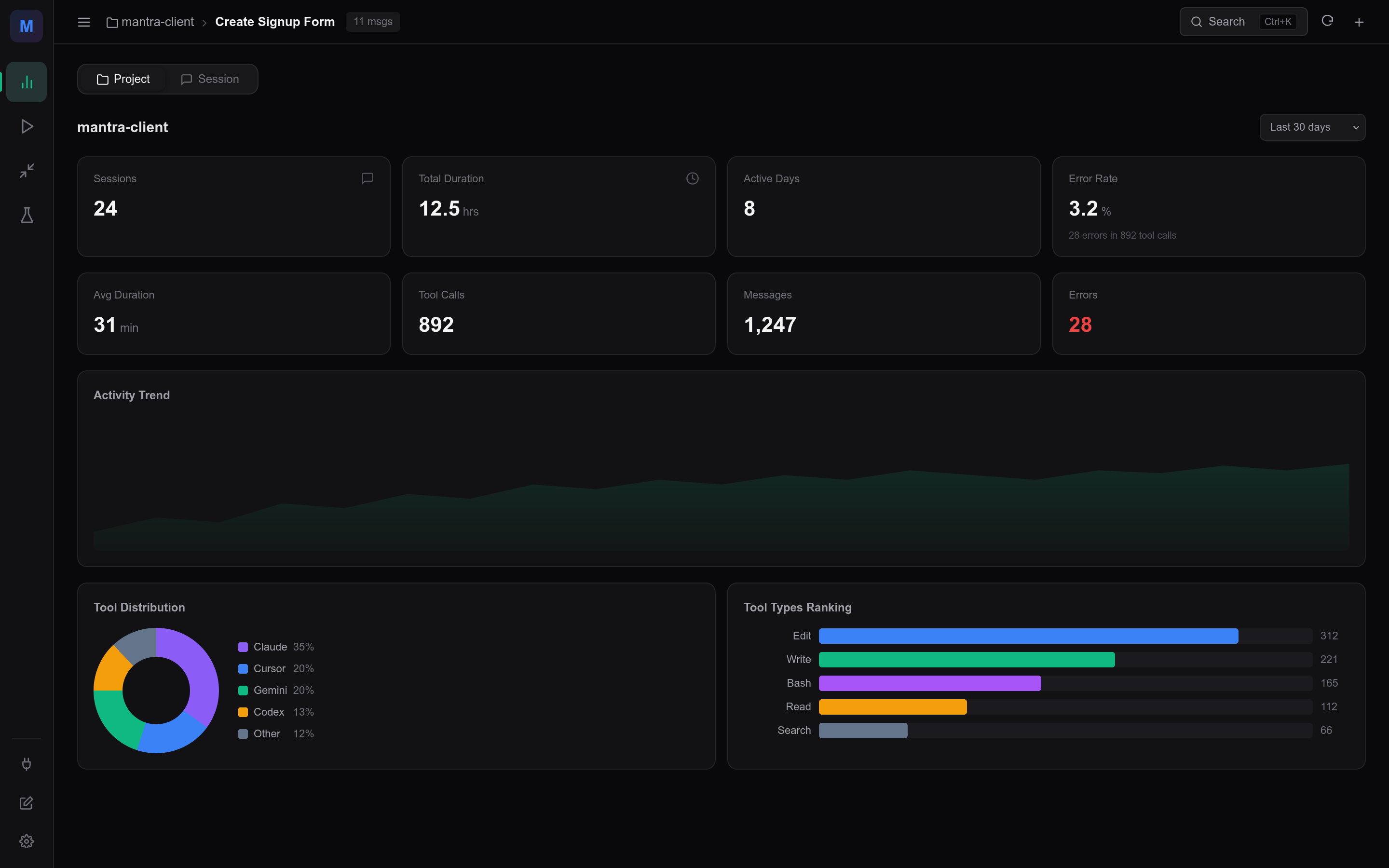
Analytics Mode takes a project-level statistical perspective on your AI programming activity, helping you quantify productivity and discover usage patterns.
Key Features
- Project Overview Metrics: Displays session count, total duration, active days, error rate, and other core stats.
- Activity Trend Chart: Visualizes the change in programming activity over time.
- Tool Call Distribution: Shows the frequency and proportion of AI tool usage (Edit / Write / Bash / Read, etc.).
- Multi-level Toggle: Switch between project-level and session-level statistical granularity.
Use Cases
- Understand your AI-assisted programming habits and efficiency trends.
- Compare AI usage depth across different projects.
- Identify high-frequency tool call patterns to optimize prompt strategies.
Playback Mode
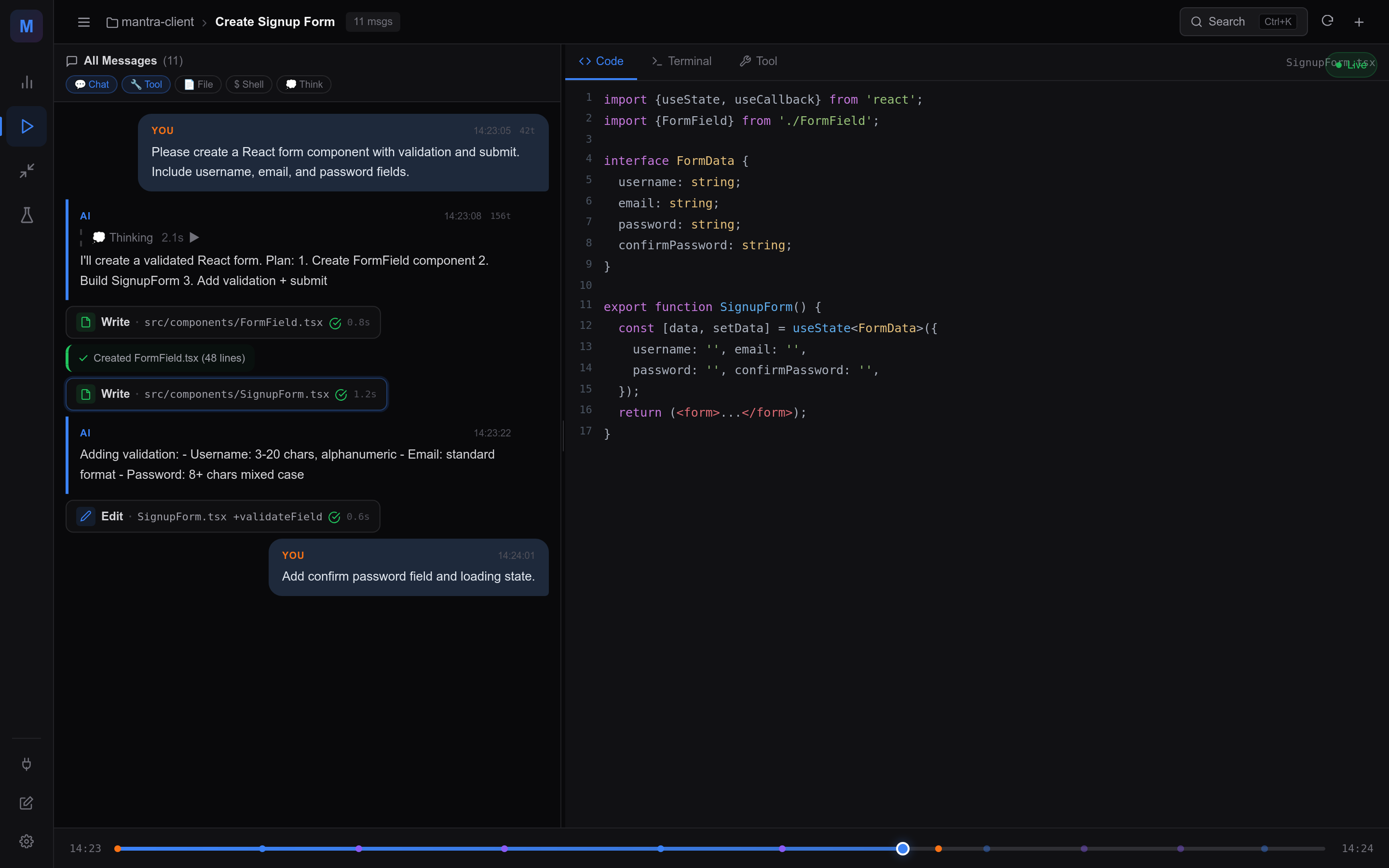
This is Mantra's default mode, focused on complete historical review and detailed exploration.
Key Features
- Full Timeline: Use the TimberLine controller at the bottom to freely backtrack to any moment in the session.
- Code Snapshots: View the complete code state at any point in time.
- Diff View: View code changes with a Diff view.
- Full Context: Displays all original messages without hiding anything.
Use Cases
- Reviewing complex programming tasks.
- Understanding how AI modified the code step-by-step.
- Finding when a specific bug was introduced.
Refine Mode
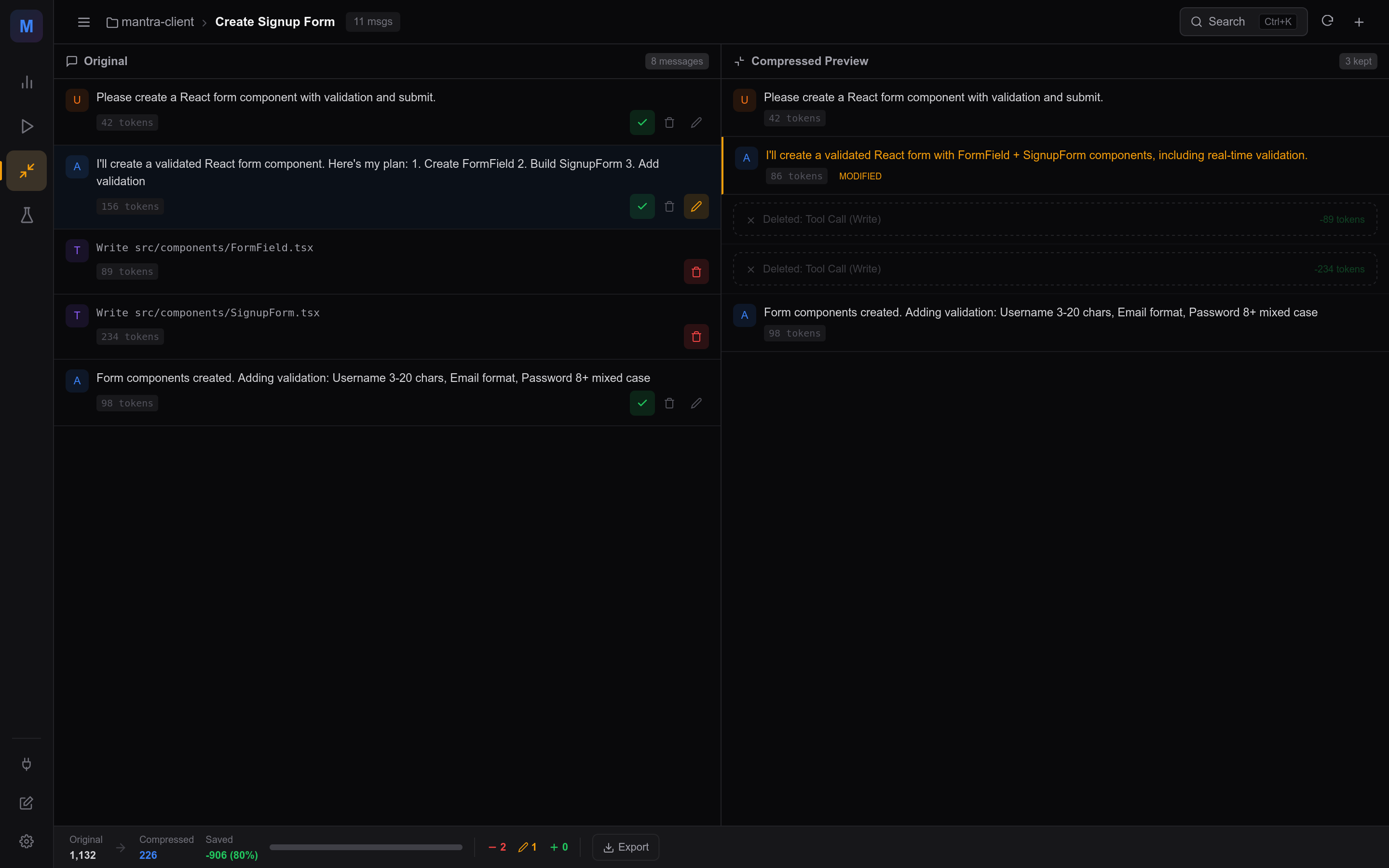
Refine Mode (also known as Compact Mode) is designed for context optimization and knowledge distillation. In this mode, you can edit, prune, and organize session content for export or sharing.
Key Features
Distraction-Free Interface
- Hides the timeline and code snapshots, focusing on the conversation text.
- Split-pane layout: Original message list on the left, preview/edit area on the right.
Message Operations
- Keep: Mark valuable messages to retain.
- Delete: Remove redundant or incorrect attempts.
- Edit: Modify Prompts or AI responses to fix errors or add information.
- Insert: Insert new context or explanations between existing messages.
Real-time Token Stats
- Displays current session Token usage in real-time at the top.
- Helps you control context length to avoid exceeding model limits.
Undo/Redo
- Supports a full history of operations.
- Use
Ctrl+Z/Cmd+Zto undo operations.
Shortcuts
Refine Mode has a set of exclusive high-efficiency shortcuts:
| Shortcut | Function | Description |
|---|---|---|
K | Keep | Mark current message as Keep |
D | Delete | Mark current message as Delete |
E | Edit | Edit current message content |
I | Insert | Insert new message after current position |
Ctrl/Cmd + S | Export | Open export menu |
? | Help | Show shortcut list |
Use Cases
- Organizing session records to generate a clean technical document.
- Reducing Context Window to use the refined session as a Prompt for a new task.
- Removing sensitive information or irrelevant chitchat.
Replay Mode (Cognitive Replay)
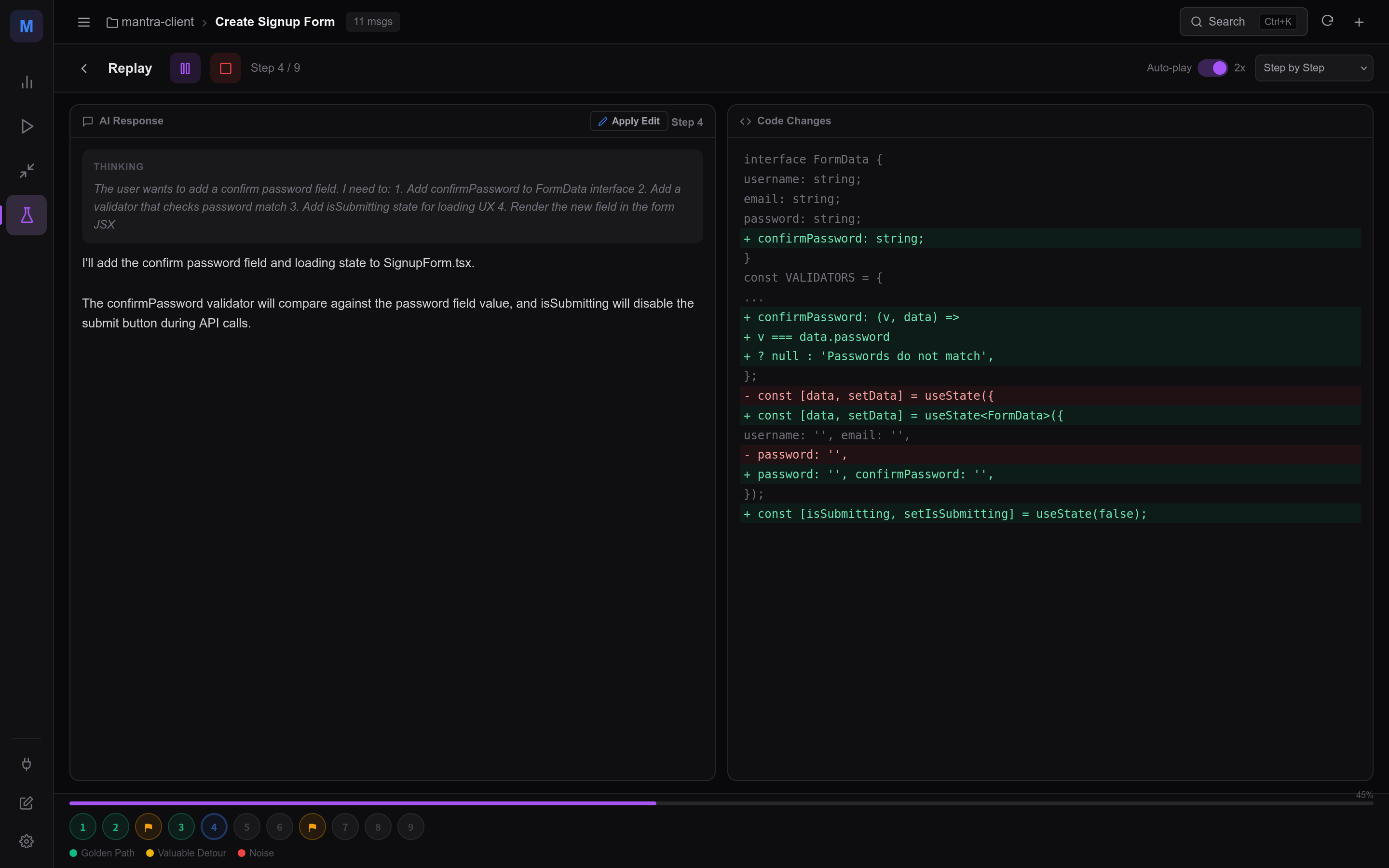
Replay Mode is an execution environment that reconstructs AI operations step-by-step in a real file system.
Key Features
- Safety Sandbox: Runs in an isolated temporary workspace (
{app_data_dir}/replay/{session_id}/) by default, protecting your original project. - Step-by-step Confirmation: Every operation (like creating a file, modifying code, or executing a command) generates a Diff preview and requires manual confirmation.
- Auto-Play: Supports auto-cycling through steps at 1x, 2x, or 5x speeds.
- Error Recovery: Provides clear prompts when errors occur, allowing you to retry or recover from stable checkpoints.
Use Cases
- Reconstructing AI-generated code projects in a local environment.
- Validating whether AI-provided solutions and commands actually work.
- Deeply studying the AI's refactoring process and tool-calling logic.
Please refer to the Replay Mode Documentation for more details.