
Skills Hub
Skills Hub is the second pillar of Mantra's "Unified Configuration Plane" (alongside MCP Hub). It centralizes Skills scattered across multiple AI tools into one place: import once, use everywhere.
What is Skills Hub?
When you use multiple AI tools like Claude Code, Cursor, Codex, and Gemini CLI simultaneously, each tool has its own Skills directory. The same Skill needs to be manually copied across tools, and updates must be synced individually.
Skills Hub solves this: all Skills are stored centrally in one location and automatically distributed to every AI tool's directory via symlinks. Manage once — take effect everywhere, instantly.
How It Works
Imported Skills are stored centrally in {app_data_dir}/skills/. Skills Hub distributes them to each AI tool's directory via symlinks:
{app_data_dir}/skills/
├── my-coding-standards/    ← source files stored here
└── project-rules/

~/.claude/skills/
└── my-coding-standards → symlink   ← points to central storage

~/.cursor/skills/
└── my-coding-standards → symlink   ← same file
All tools read the same file — edit once, take effect globally.
Cross-Platform Support
- Linux / macOS: Uses standard symlinks
- Windows: Automatically falls back to junctions (directory links), no admin privileges required
Scanning & Importing
Supported Scan Sources
Skills Hub discovers Skills from three types of sources:
Four Standard Tool Directories
| Source | User-level Path | Project-level Path |
|---|---|---|
| Claude Code | ~/.claude/skills/ | .claude/skills/ |
| Cursor | ~/.cursor/skills/ | .cursor/skills/ |
| Codex | ~/.codex/skills/ | .codex/skills/ |
| Gemini CLI | ~/.gemini/skills/ | .gemini/skills/ |
Custom Source Directories
Maintain a list of custom scan directories in Settings → Developer Settings to let Mantra discover Skills stored anywhere on your system. See Custom Source Directories.
GitHub Repositories
Enter a public GitHub repository URL to bulk-import all SKILL.md files and subscribe to upstream updates. See GitHub Repository Import.
Four-Tier Smart Classification
After scanning, Skills Hub classifies every detected Skill into one of four tiers:
| Classification | Meaning | Action |
|---|---|---|
| Auto Import | New Skill, doesn't exist in Hub | Imported directly, no intervention needed |
| Auto Skip | Identical to an existing Skill in Hub | Automatically skipped to avoid duplicates |
| Needs Decision | Content differs — conflict detected | Review the diff and choose a resolution strategy |
| Broken | Dangling symlink or inaccessible directory | Grouped separately, excluded from takeover |
Multi-Source Aggregation
When the same Skill is referenced by multiple tool directories (e.g., symlinks from several tools all pointing to the same real file), Skills Hub aggregates them into a single card, keeping the decision-making UI clean:
- 🔗 N references: A badge shows how many tool directories reference this Skill
- Real Location (Canonical Source): Shows the actual file path, not the symlink path
- Referenced by: An expandable list shows each reference path and whether it's a symlink
No matter how many tools point to the same file, the import wizard only asks you to decide once.
Broken Entries
When scanning encounters dangling symlinks (target doesn't exist) or inaccessible directories, the affected Skills are placed in a separate "Broken entries" group:
- Shows the reason for the anomaly (dangling symlink / inaccessible directory / mixed)
- Provides diagnostic information to help you locate the source symlink for manual cleanup
- Does not participate in the takeover flow; does not affect normal Skills
5-Step Import Wizard
Skills Hub provides a guided import process:
- Scan: Select sources to scan (tool directories, custom directories, or a GitHub repository), automatically discover Skills
- Preview: View detected Skills and four-tier classification; Skills referenced by multiple tools appear as aggregated cards
- Conflict Resolution: Review diffs and choose a resolution strategy for "Needs Decision" Skills
- Execute: Confirm and execute the import (external source cleanup requires a second confirmation), establish symlink distribution
- Link: Link imported Skills to relevant projects
Scan Progress
The import wizard shows per-source scan progress feedback, so you always know the current status even with many Skills.
Conflict Resolution
When an import candidate conflicts with an existing Skill in the Hub, Skills Hub provides a structured resolution flow.
Three-Way Comparison View
When both the local version and the upstream version differ from the original (the snapshot taken at first import), Skills Hub opens a three-way comparison:
| Pane | Content |
|---|---|
| Base | Content from the first-import snapshot |
| Ours | Current Skill's latest content |
| Theirs | Import candidate or upstream update |
File-level diffs are shown side-by-side so every change is immediately visible.
If local is unchanged (Base = Ours) and upstream has updates, Skills Hub suggests Overwrite by default (Fast-Forward) — one confirmation and you're done.
Three Conflict Strategies
| Strategy | Behavior |
|---|---|
| Overwrite | Replace local with upstream; an upstream_sync snapshot is created automatically |
| Rename | Import upstream as {name}-2, -3… keeping local intact |
| Skip | Skip this item for now; records an audit log entry for later review |
After your first choice, check "Apply to remaining conflicts" to batch-apply the same strategy to all remaining conflict items in one click.
Unified Entry Point
Tool directory scan, custom directory scan, and GitHub import/check-upstream — all three flows route through the same resolution logic with identical behavior.
GitHub Repository Import
Import Skills directly from public GitHub repositories and stay in sync with upstream changes.
Import Steps
Select the "From GitHub" tab in the import wizard:
- Enter the repository URL (
https://github.com/owner/repo) - Optionally specify a branch (default:
main) and subpath (to scan only a subdirectory) - Click "Scan" — shallow clone + automatic scan of all
SKILL.mdfiles (100+ Skills in under 30 seconds) - Preview the candidate list and select items individually or all at once
- Execute import through the standard four-step atomic takeover pipeline
Supported Repositories
This version supports public HTTPS repositories only (https://github.com/owner/repo). Private repositories and SSH form will be supported in a future release via OAuth Token.
Upstream Subscription Tracking
After import, Skills Hub records the source repo URL and commit SHA for each Skill. In the Skill detail panel:
- The metadata section shows:
Upstream: {owner}/{repo}@{branch} · sha {short_sha} · Last checked {time} - Click "Check Upstream" to fetch the latest commit and compare content:
- Same content: toast notification "Already up to date"
- Different content: enter three-way comparison and conflict resolution flow
Origin Identification
When importing from GitHub, Skills Hub parses the remote origin from .git/config + HEAD. When multiple Skills share the same display name, the card subtitle automatically shows host/owner/repo, making it immediately clear which Skills come from which repository.
Name Disambiguation
Importing a Skill whose name already exists in the Hub no longer causes an error — suffixes are added automatically:
- New names start from
{name}-2, incrementing until unique - All metadata (source tool, remote origin, etc.) is fully inherited
- The Skill detail panel shows complete name provenance information
Skills Management
Management Page
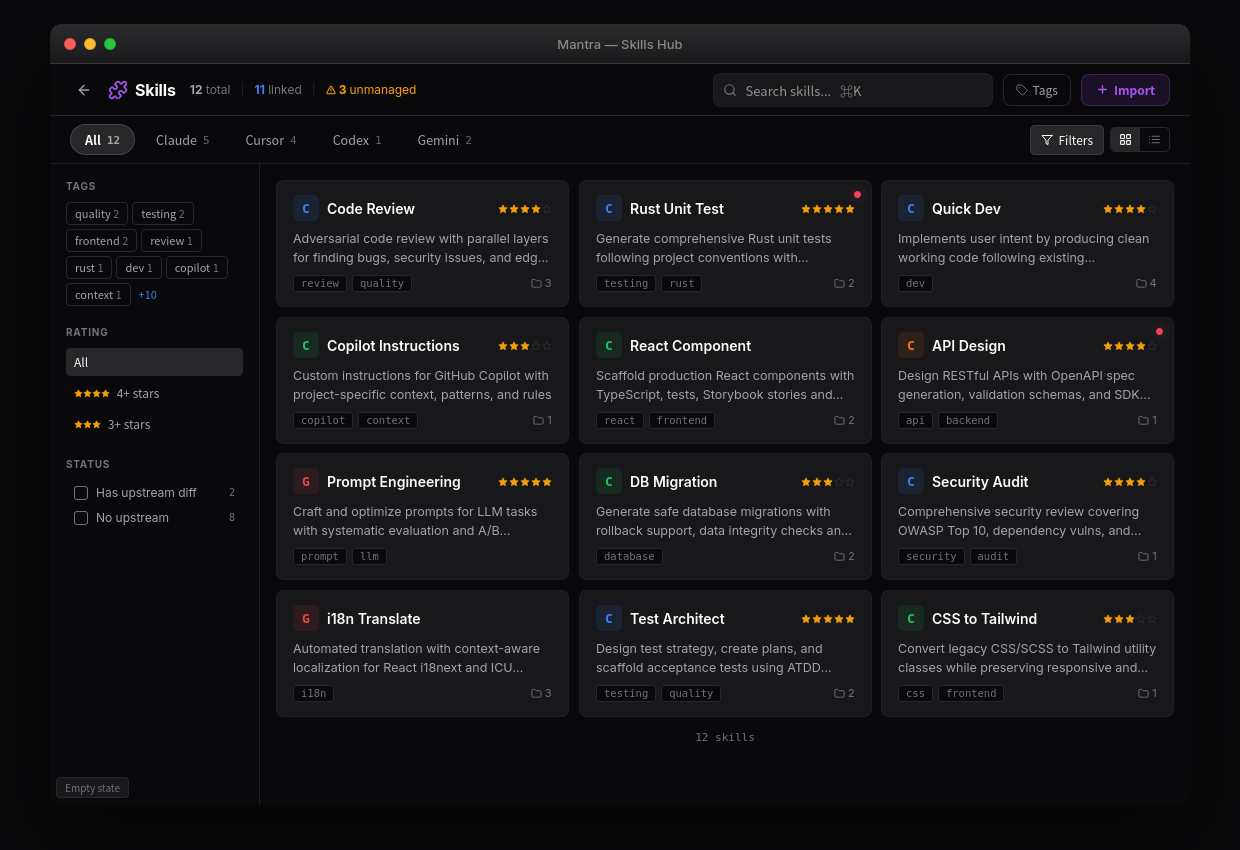
Skills Hub provides a dedicated management interface:
- Overview Metrics: Total Skills count, linked projects, backup status
- Tag Filtering: Click the tag bar at the top to instantly filter; tool brand tags are generated automatically by the system
- Full-Text Search (FTS): Search across Skill names, descriptions, and tag content simultaneously
- View Toggle: List view / Grid view
- Sorting: Sort by rating, name, or import date
- Backup Summary: Collapsible backup status panel
Tags & Ratings
Tags
Add any tags to a Skill for flexible categorization:
- Tags appear in the tag bar at the top of Skills Hub; click to filter instantly
- Tags participate in full-text search — searches automatically match tag content
- Tool brand tags (Claude / Cursor / Codex / Gemini) are generated automatically based on the Skill's source
Star Ratings
Rate each Skill 1–5 stars to track which ones are most valuable to you:
- Ratings can be used as a sort dimension — list/grid views support sort by rating descending
- Rating data is stored entirely locally and never uploaded to the cloud
Skill Details
Click any Skill to view:
- Full metadata (name, source tool, creation time, upstream repository, etc.)
- Skill content preview
- Tags and star rating
- Linked projects list
- Version history (snapshot timeline)
- Deletion impact preview
Version History & Snapshots
Skills Hub automatically tracks the content history of every Skill, with rollback support at any time.
Automatic Snapshot Triggers
| Trigger | Source Label | Permanently Retained |
|---|---|---|
| First takeover completes | imported | Yes, never deleted |
| Skill file content changes (500ms debounce) | fs_change | No, rolling cleanup after 50 entries |
| Upstream update applied (Overwrite strategy) | upstream_sync | No |
| Manual restore operation | restore | No |
Snapshots with identical hashes are automatically deduplicated — no duplicate disk usage.
Snapshot Timeline
Switch to the "Version History" tab in the Skill detail panel:
| Column | Description |
|---|---|
| Time | Snapshot creation time |
| Source | Source badge (imported / fs_change / upstream_sync / restore) |
| Size | Compressed size |
| Hash | Content fingerprint (first 8 chars) |
| Actions | View Diff / Restore / Delete |
Rollback & Restore
Click "Restore" on any snapshot:
- A confirmation dialog appears ("This will overwrite the current files. Continue?")
- The snapshot's content overwrites the current Skill directory
- A
restoresnapshot is automatically created to record this action - Symlink structure is preserved — tool directories require no reconfiguration
Capacity Management
- Up to 50 non-
importedsnapshots are retained per Skill; the oldest is automatically pruned when exceeded - A warning banner with "Bulk delete by time range" appears when a single Skill's snapshots exceed 100 MB
- A global notification appears at the top of Skills Hub when total snapshots exceed 2 GB
Safety & Security
Takeover Backup
Before importing, Skills Hub automatically backs up the original Skill directories. The takeover process uses a four-step atomic operation with dual-branch rollback, ensuring automatic recovery if anything goes wrong:
- BACKUP: Back up the original directory
- COPY: Copy content to central storage (with concurrent-modification protection)
- CLEANUP: Remove the old location (only within the safety allowlist)
- SYMLINK: Establish symlink distribution to all tool directories
Backup policy: automatic backup before each takeover, last 5 versions retained, expired backups automatically cleaned, integrity verified on restore.
External Source Safety Warnings
When a Skill's actual content lives outside the standard tool directories, the takeover operation involves cleaning up the external source directory. Skills Hub alerts you with two-level warnings:
| Warning Level | Color | Trigger | Meaning |
|---|---|---|---|
| External Source | Amber | Content is under HOME but outside tool directories | External directory will be cleaned up after takeover; already backed up to ~/.mantra/backups/ |
| System Path | Red | Content is in a system path (/etc/, /usr/, etc.) | System directories won't be cleaned; Mantra only creates a copy |
Before executing a takeover with pending external source cleanup, a confirmation dialog appears requiring a checkbox confirmation.
Safety allowlist: only directories under $HOME/ may be cleaned; system paths are automatically rejected.
Project Linking
Linking Mechanism
Skills Hub supports flexible many-to-many project linking:
- User-level Skills: Automatically linked to all existing projects
- Project-level Skills: Only linked to the source project
- You can manually link or unlink any Skill to any project at any time
- After changes, symlinks in tool directories are automatically added or removed
Project Detail Integration
A Skill card (SkillContextCard) is embedded in each project detail page:
- Compact overview card: shows linked Skill count, source tool icons, and an expandable Skill list
- Linked Skills list with quick actions (link / unlink / view details)
- When a project has more than 5 linked Skills, a search box appears for filtering by name or description
- Bidirectional navigation: Skill cards can jump to linked projects; project detail can jump back to Skills Hub
This mirrors MCP Hub's project integration with a symmetric design for a consistent experience.
Reverse-Flow Detection
When you open a project, Skills Hub automatically detects whether any AI tool has directly created new Skill files (bypassing Mantra's management). If detected, an amber banner appears inside the card with a one-click import button, letting you decide whether to bring them under unified management.
Custom Source Directories
Maintain a list of custom scan directories in Settings → Developer Settings to let Mantra discover Skills stored anywhere on your system.
AGENTS.md Standard Directory
More and more users follow the AGENTS.md convention and store tool-agnostic shared Skills in ~/.agents/skills/. Mantra treats this directory as a system-level default source:
- Enabled by default, automatically registered on first launch
- Can be disabled (excluded from scanning), but cannot be deleted
- Even if the directory doesn't exist (tool not installed), the entry is retained and automatically skipped during scanning
Adding Custom Directories
Click "Add Directory" and choose any directory using the system file picker. Path validation rules:
- Directory must already exist
- System-sensitive paths are not allowed (
/etc/,/usr/,C:\Windows\, etc.) - Sensitive directories inside HOME are not allowed (
.ssh,.aws,.kube, etc.) - Directories outside HOME are allowed (e.g.,
/data/shared-skills/)
Directory Status Management
Each entry supports:
- Enable / Disable: Disabled directories are skipped in the next scan
- Delete (system-level entries cannot be deleted)
- Status indicator: Shows a red warning icon when the directory no longer exists
Scanning Aggregation Behavior
Skills discovered from custom directories are automatically aggregated with results from standard tool directories by canonical source (real file location):
- If
~/.agents/skills/my-skillis symlinked by Codex, they aggregate into a single entry (multi-source display) - Custom directories are read-only scan sources — symlink fanout after takeover still only writes to the four standard tool directories
Relationship with MCP Hub
Skills Hub and MCP Hub together form Mantra's Unified Configuration Plane:
| Dimension | MCP Hub | Skills Hub |
|---|---|---|
| Manages | MCP Services (tool capabilities) | Skills (knowledge and conventions) |
| Workflow | Takeover → Centralize → Distribute | Takeover → Centralize → Distribute |
| Storage | SQLite database | {app_data_dir}/skills/ |
| Distribution | Config file rewriting | Symlink / Junction |
| Project linking | Supported | Supported |
| Backup/Restore | Supported | Supported |
Both follow the same design pattern: Takeover → Central Storage → Distribution, allowing you to manage all AI tool configurations from one place.
Next Steps
- MCP Hub - Learn about unified MCP service management
- Project Management - Learn about project-level Skills and MCP linking
- Compatibility - Check Skills support across AI tools